Employees
The HR Manager will be able to add in new Employees - (Users who are offered a position in an organization ).
Also manage existing employees - like modifying the details of an employee or making an employee inactive, allocating leaves, etc…
Add an employee
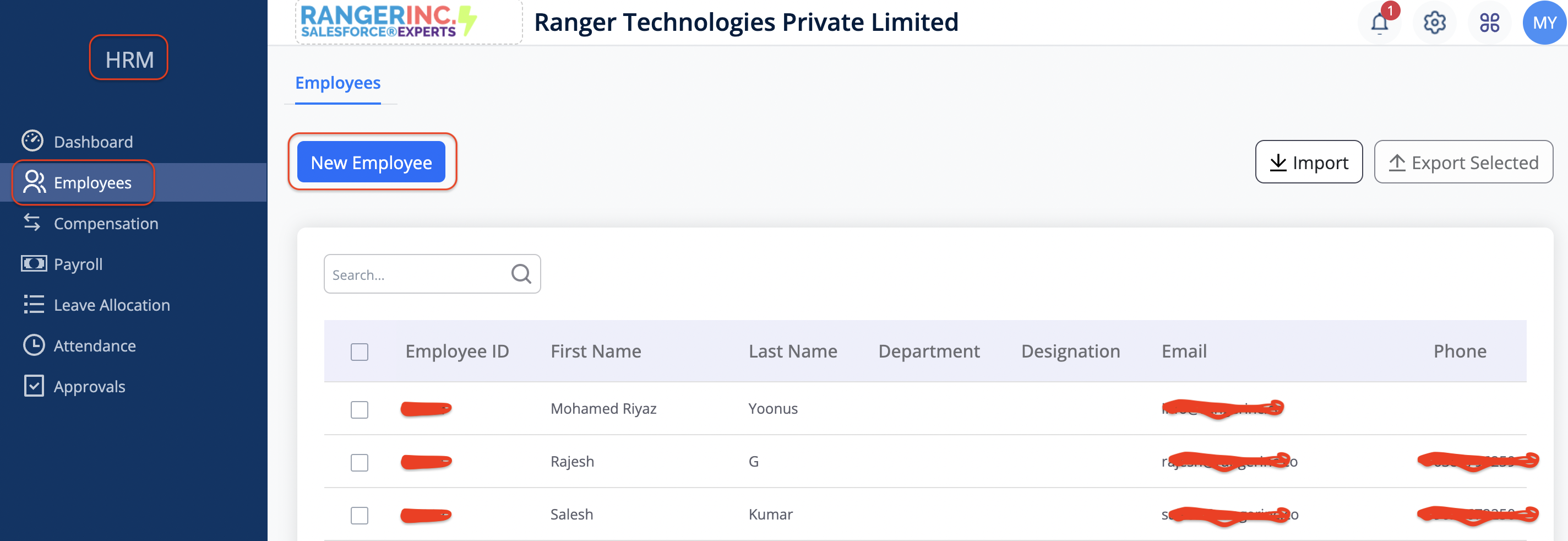 Fig2.1
- Open HRM app→Employees → Click New Employee button (refer to fig 2.1)
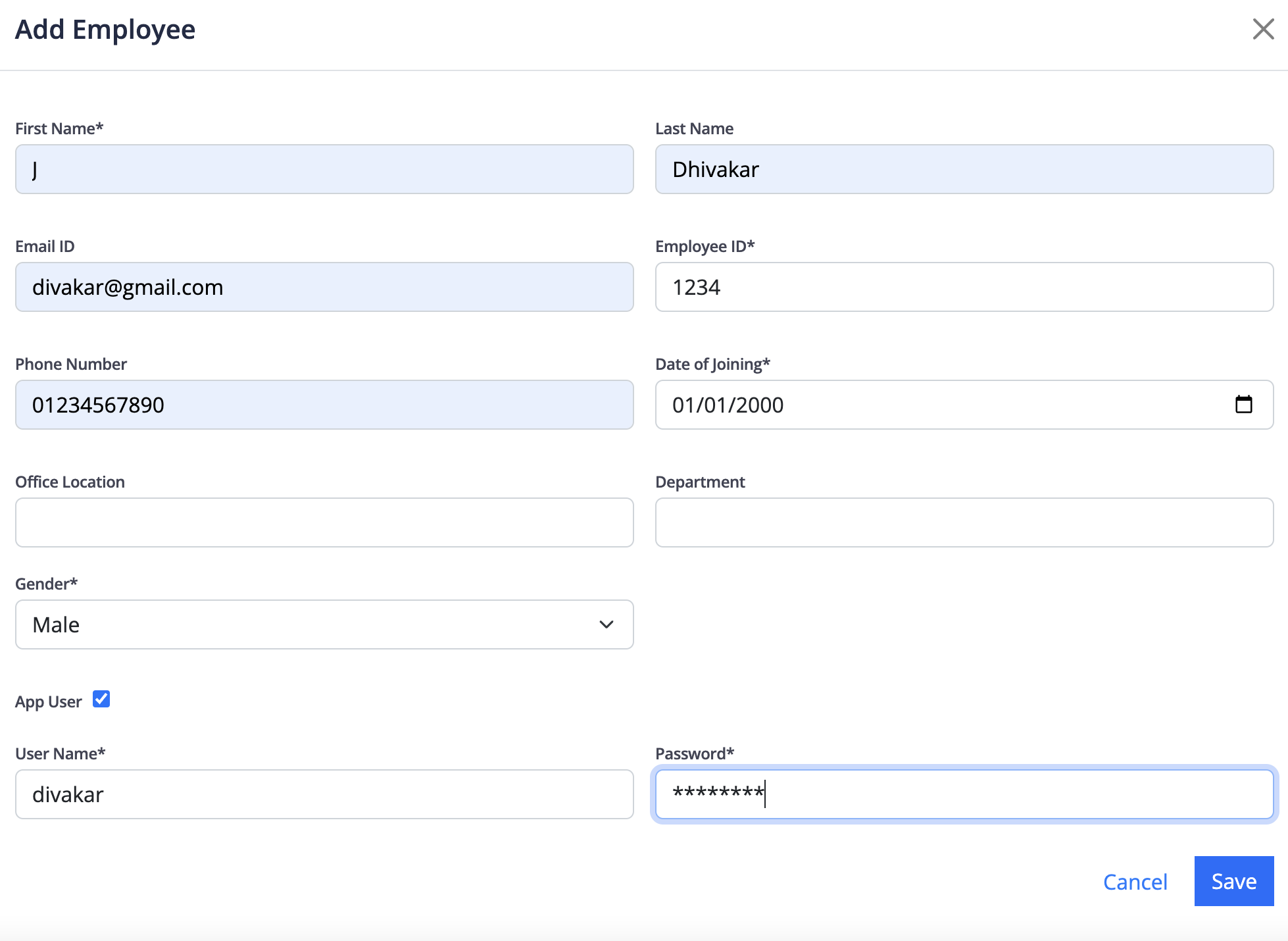 Fig 2.2
-
In the New Employee form, Give all the employee details such as Employee ID, Name, DOB, Nationality, Gender, Marital Status Etc and click the App user check box to set the user name and password to use the application.
-
click save button to save the record. (refer fig 2.2)
Update / Edit Employee details
- Open HRM app→Employee
- The list of employee will be displayed, Select the employee, the employee detail window will be displayed to update the details. (refer fig 2.3)
Basic Info
- Click the edit icon to update the Personal Info, Contact Info, Address Info and Social Info.
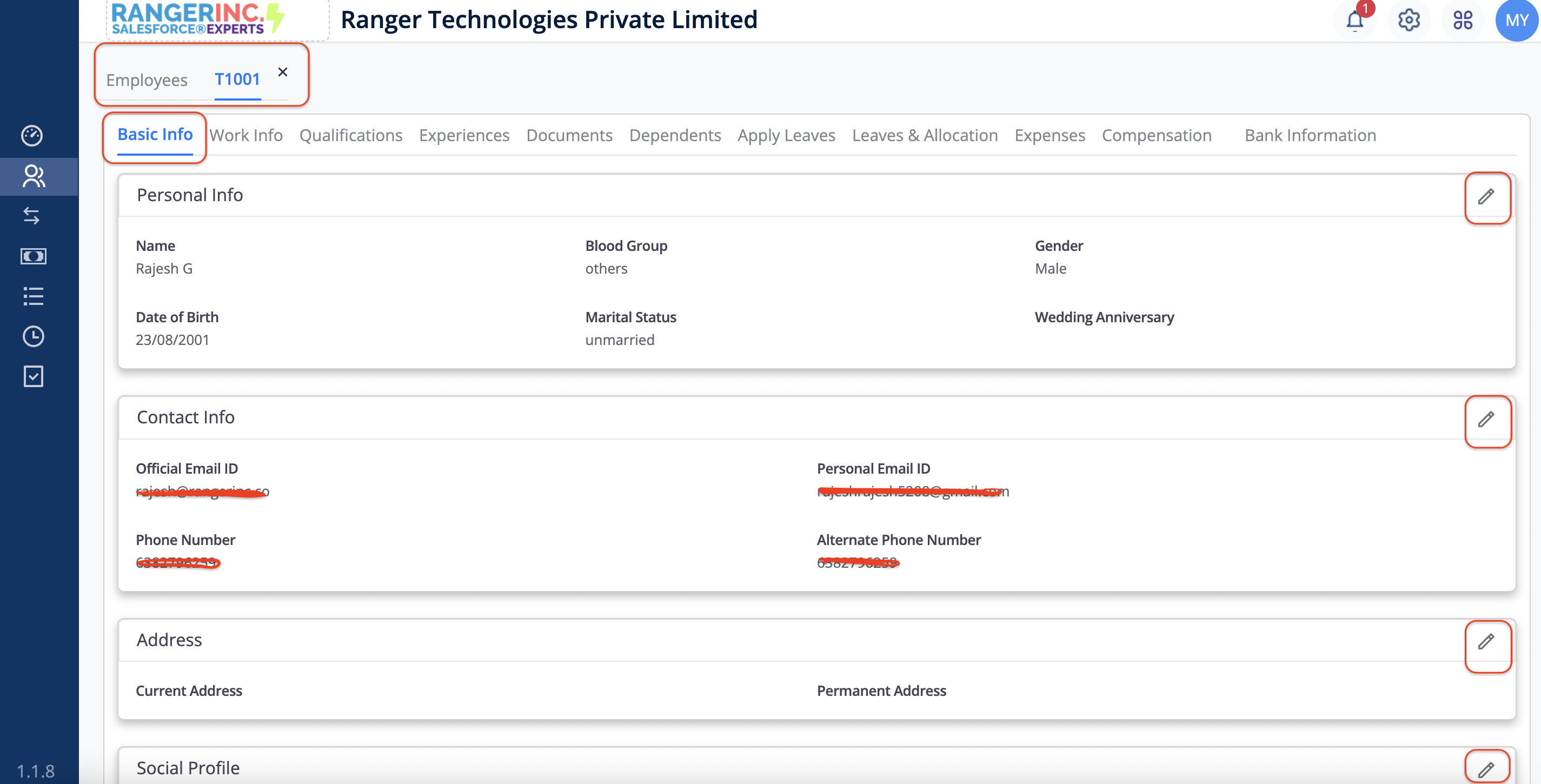 Fig 2.3
Work Info
- Select the Work info tab to update the work info and account information of the employee.
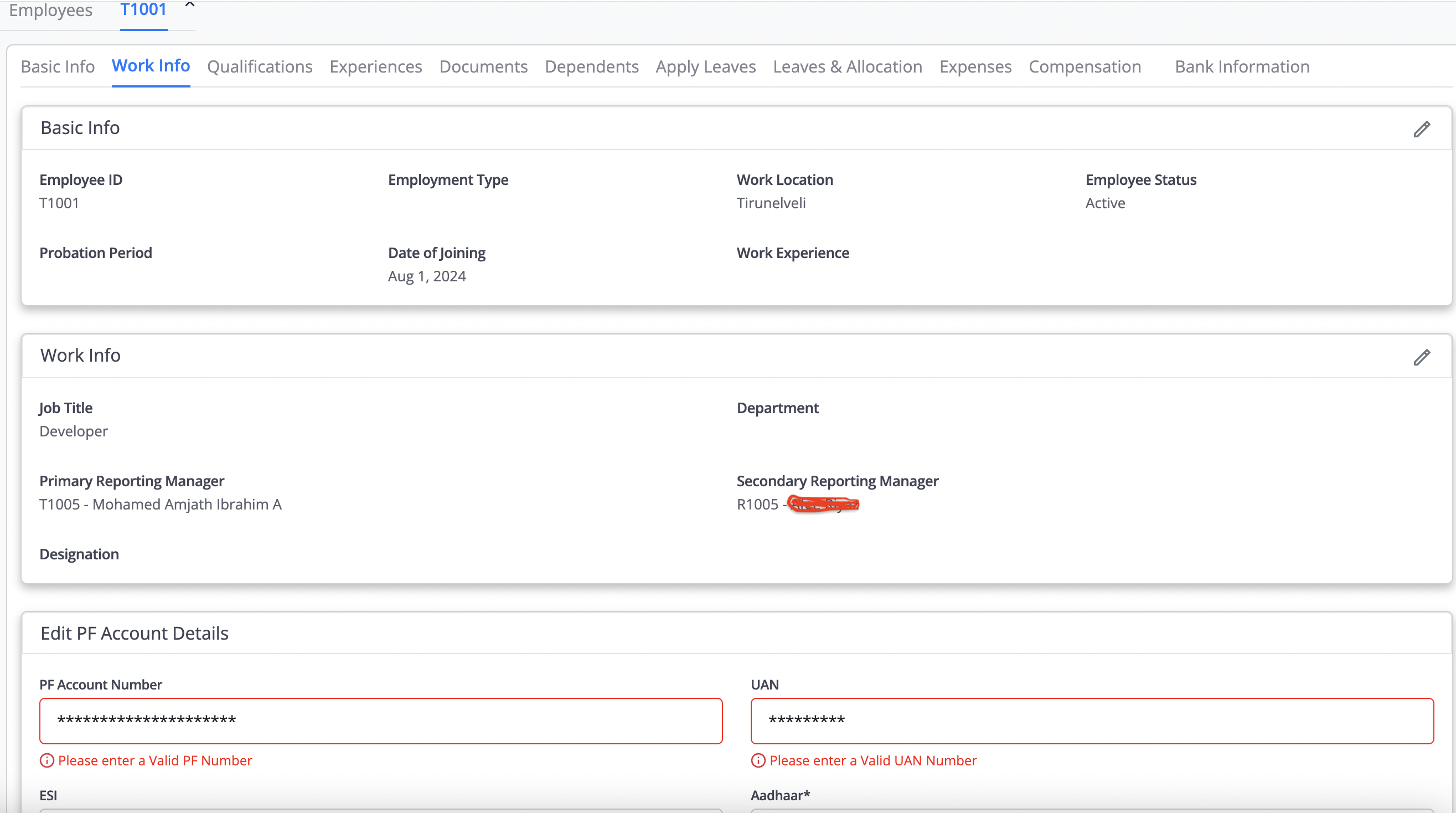 Fig 2.4
Qualification
- Select the Qualification tab to update the employee qualification by clicking the add qualification button and update the details and click save button to save the record. (refer fig 2.5)
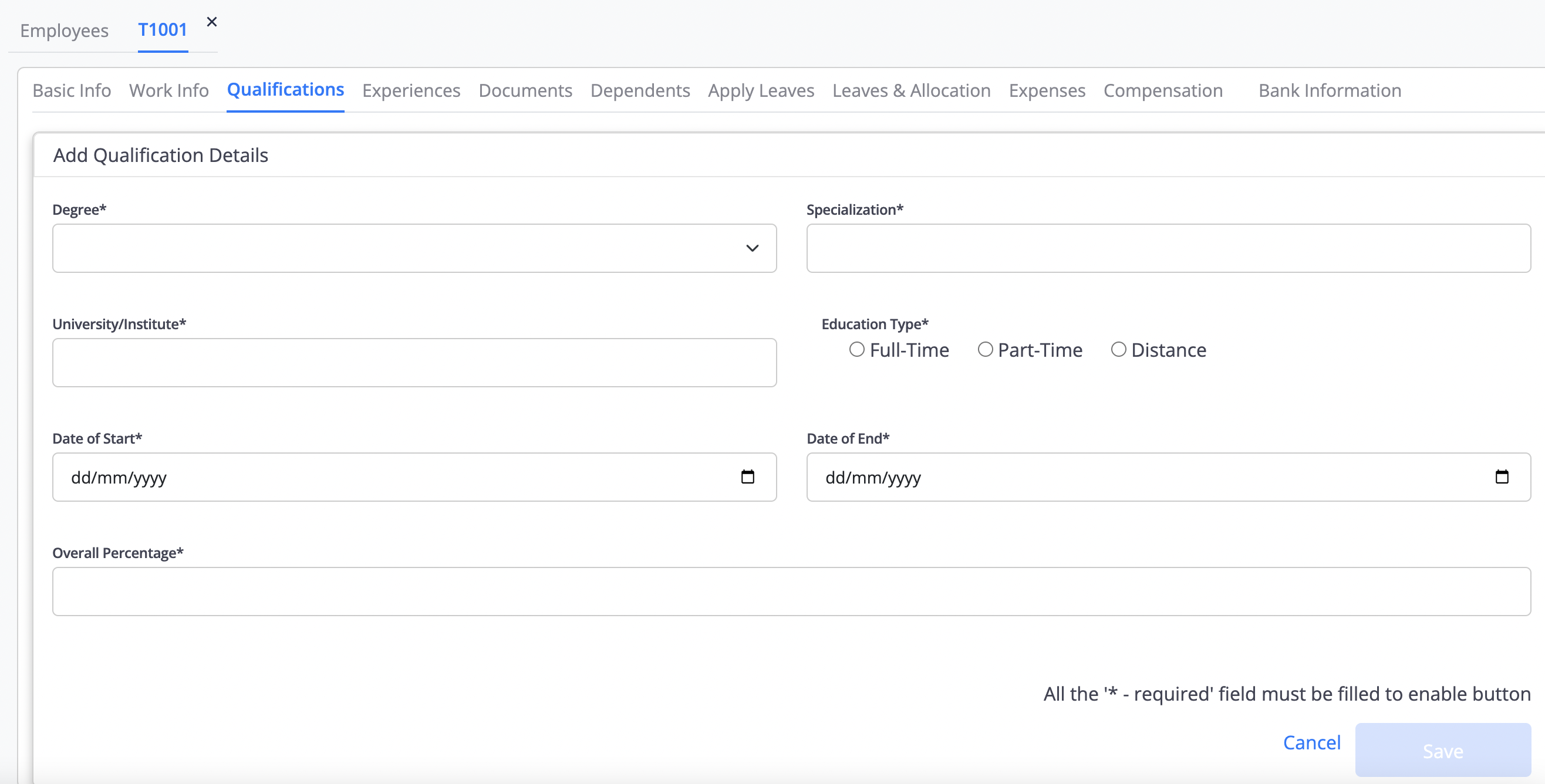 Fig 2.5
Experience
- Select the Experience tab to update the employee previous experience by clicking the add experience button and update the details and click save button to save the record. (refer fig 2.6)
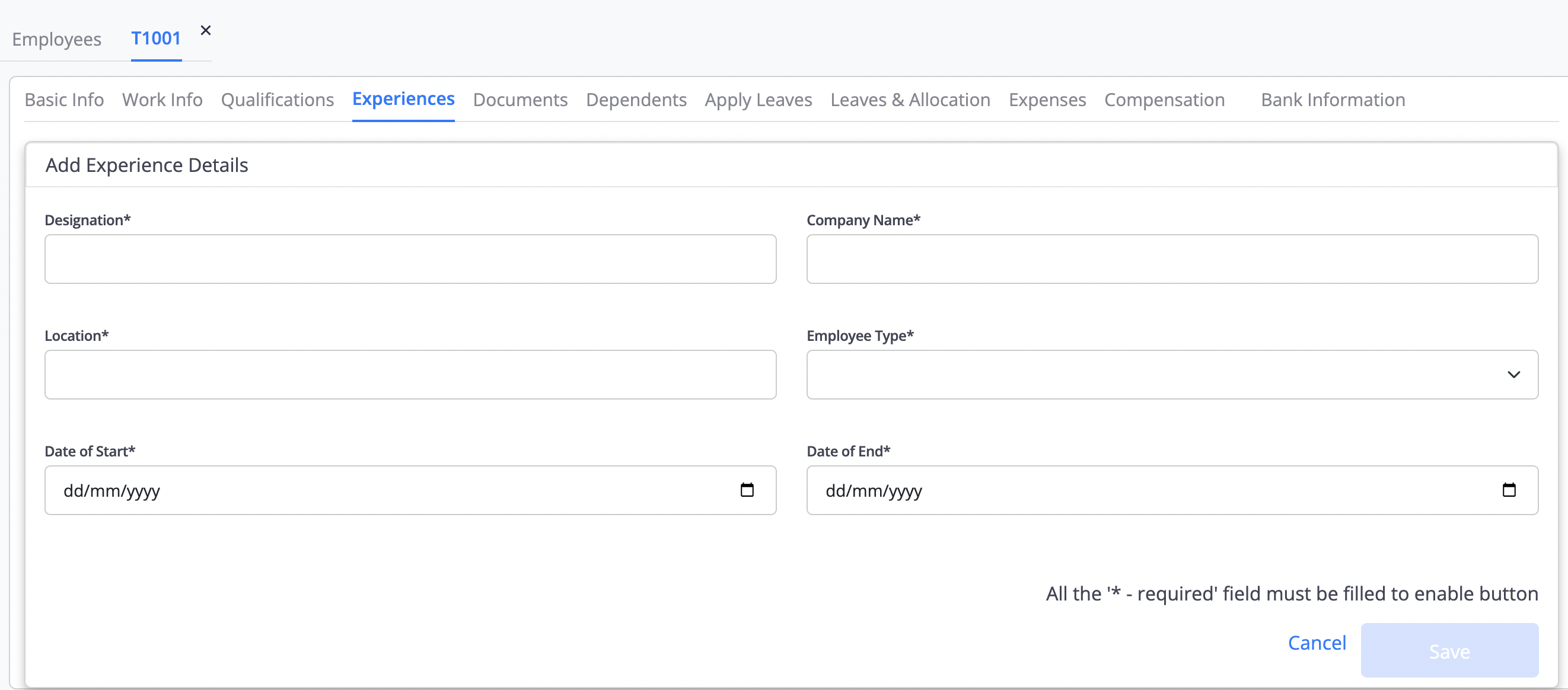 Fig 2.6
Documents
-
Select the Documents tab to update the employee documents by clicking the add document button and update the details and click browse button to attach the scaned documents copy.
-
Click save button to save the record. (refer fig 2.7)
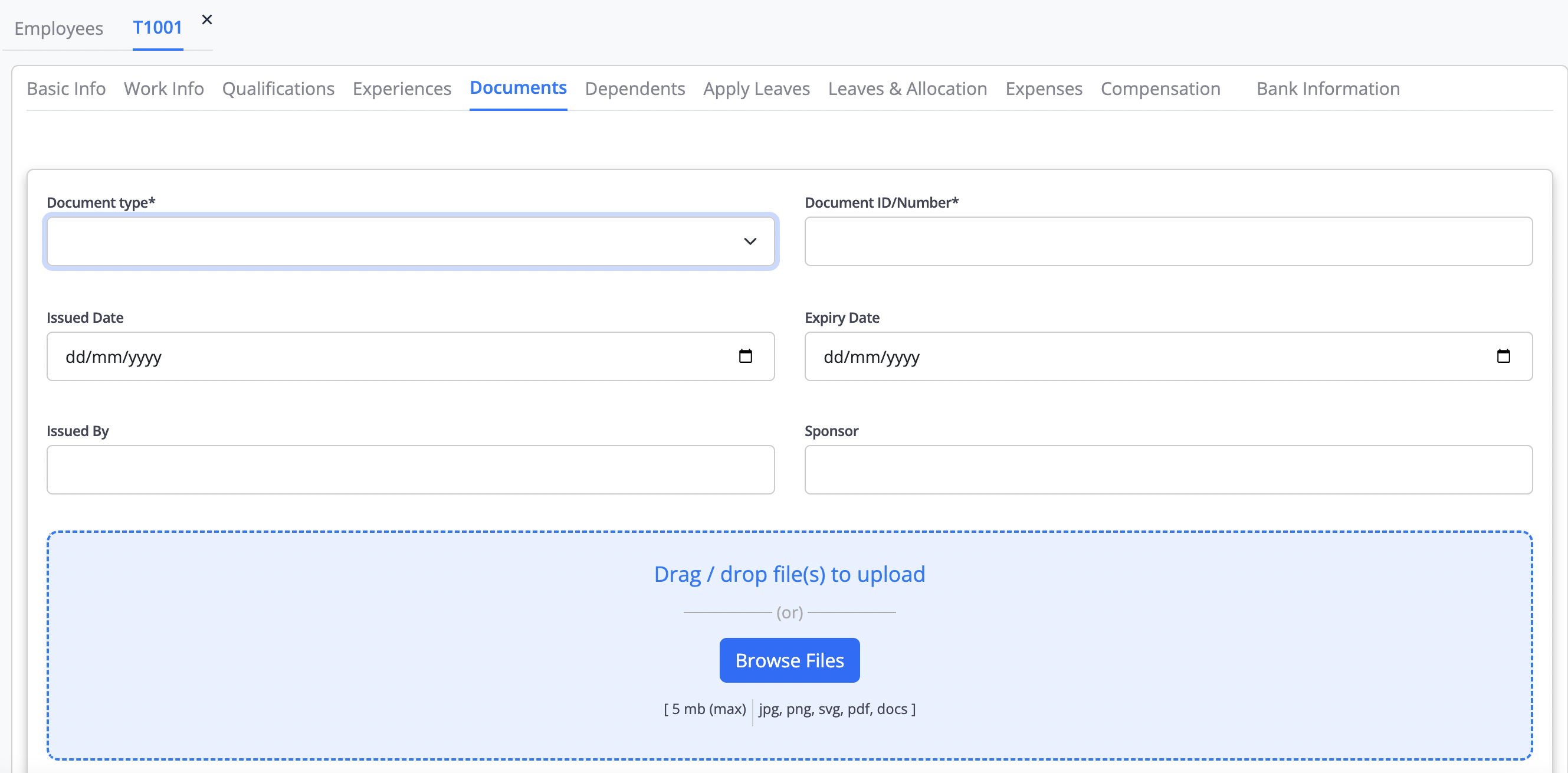 Fig 2.7
Dependency
-
Select the Dependency tab to update the employee family details and emergency contact details by clicking the add dependency button and update the details and click emergency contact button to to update the embegency contact details.
-
Click save button to save the record. (refer fig 2.8)
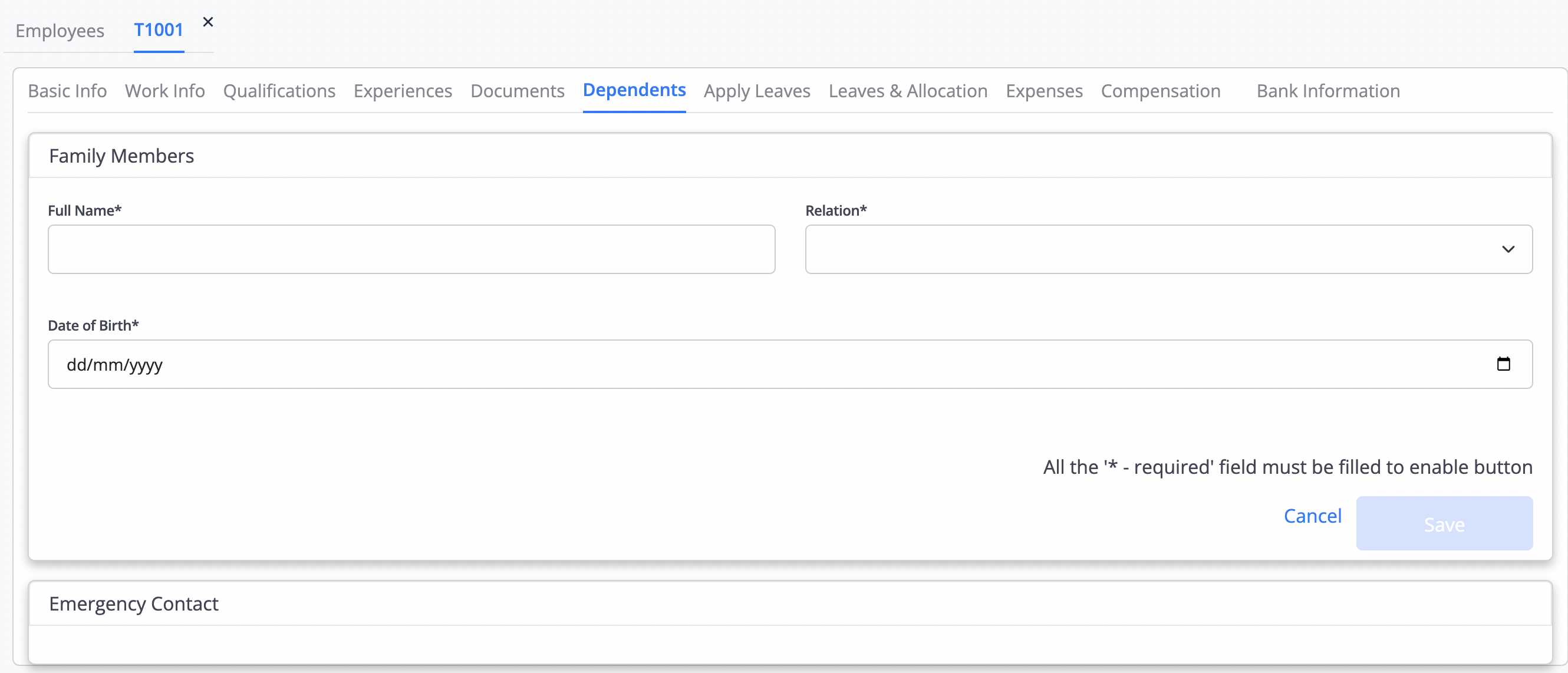 Fig 2.8
Apply Leave
-
Select the Apply Leave tab, it will display the leaves available balance, Click apply button to apply leaves, a new leave apply form will be opened.
-
Select the leave type, from date, to date, start date session, reason for leave and click save button to update the record.
-
Click save button to save the record. (refer fig 2.9)
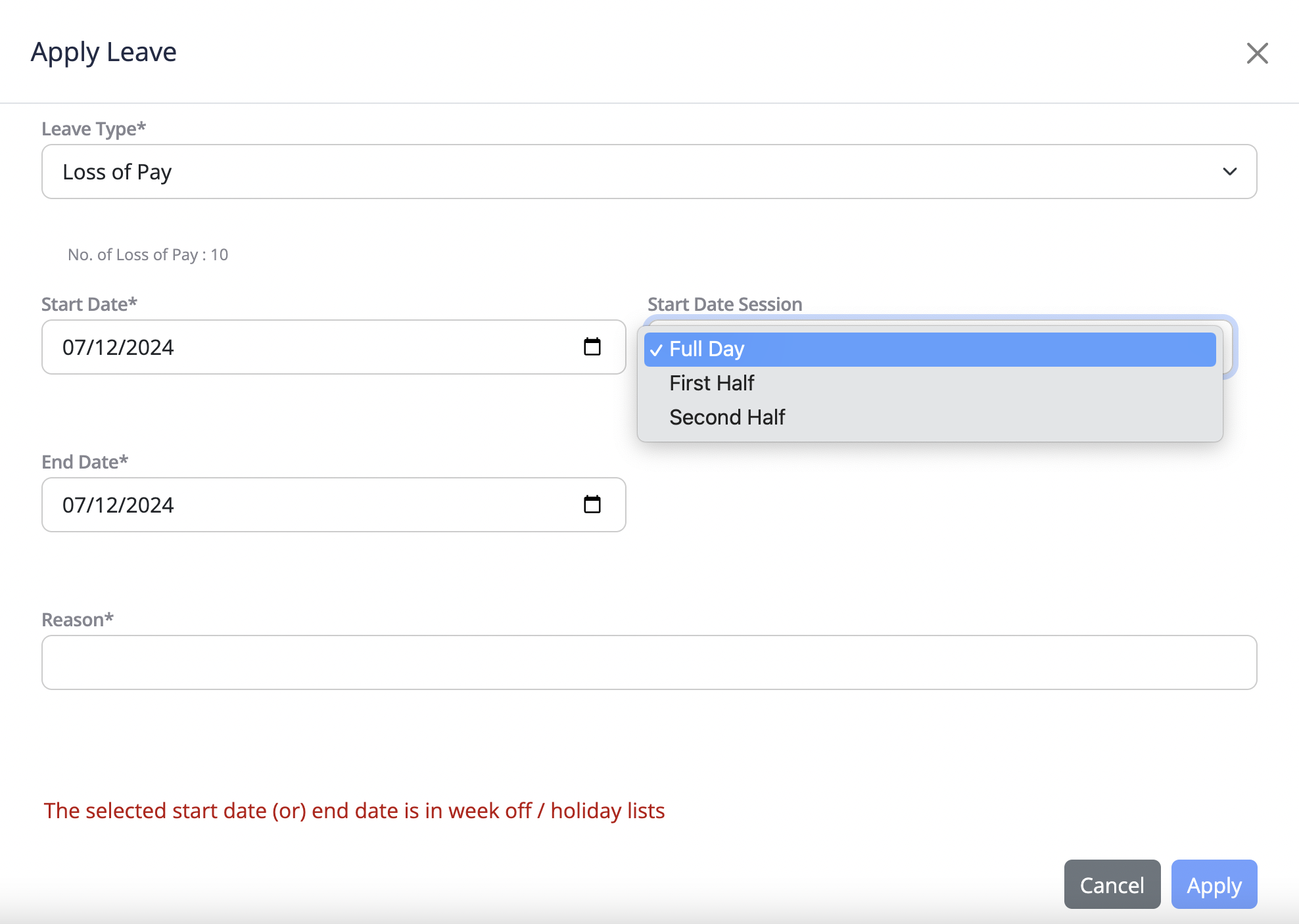 Fig 2.9
Bank Information
-
Select the Bank info tab, Enter the employee bank information.
-
Click save button to save the record. (refer fig 2.10)
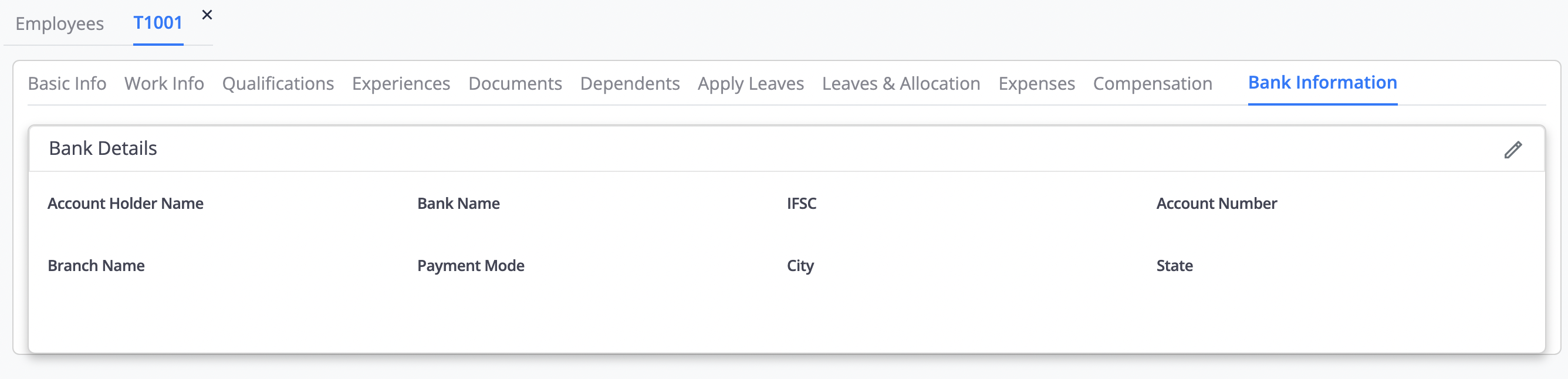 Fig 2.10